
Preparing 3D Models for Drawing Automation in Autodesk Inventor
In drawing automation workflows, placing drawing views and annotations requires preparation in the 3D model before automation begins.
Drawing views reference the model directly, and annotations such as dimensions, leader notes, and balloons attach to drawing entities derived from model geometry. These drawing entities are centerlines, centermarks, and representations of model faces and edges. Because of this relationship, preparing the model correctly makes automation more reliable and easier to implement.
Preparing the Model to Automate Drawing Views
If automation only repositions or rescales existing drawing views, the 3D model usually does not require changes. For example, iLogic snippets allow repositioning and resizing views already placed in a drawing.
However, when automation includes creating drawing views programmatically, the model orientation must be defined correctly to use Inventor API drawing view methods properly.
One recommended approach is setting the model’s Front view using the ViewCube. Right-click on the ViewCube > Set Current View as > Front
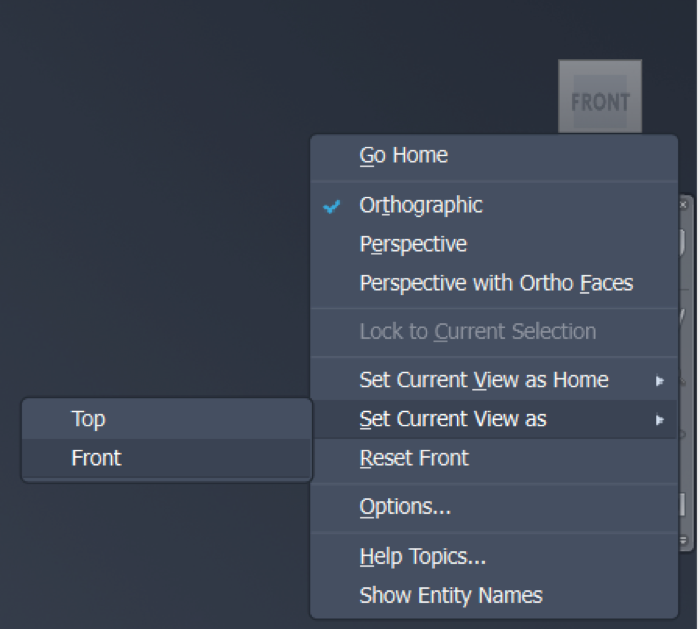
Image 1 – Set the Front view in the 3D model
This orientation can then be referenced when creating drawing views using the Inventor API. The API supports creating multiple view types programmatically, including:
- Base views
- Projected views
- Section views
- Detail views
- Auxiliary views
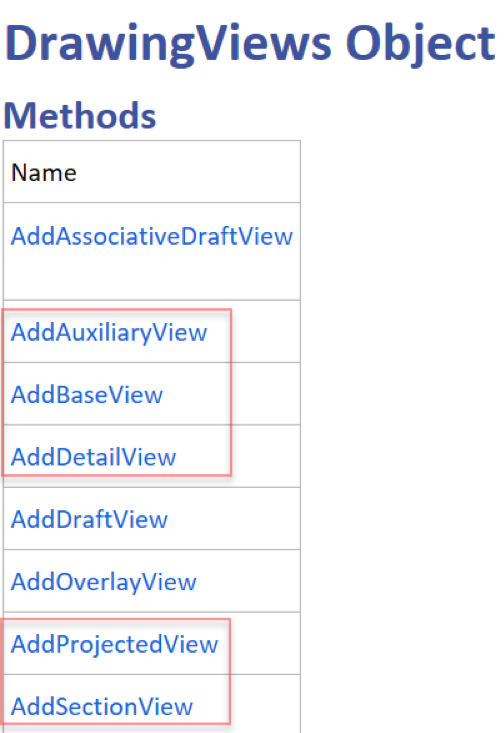
Image 2 – Methods to add drawing views using Inventor API
Consistent model orientation ensures views are placed predictably during automation.
Preparing the Model to Automate Annotations
Annotations can be placed automatically in three ways.
- Specifying a position on the sheet by using 2D cartesian coordinates (x, y). Notes and Parts Lists are drawing annotations that only need cartesian coordinates.
- Using drawing entities to attach the annotation and a point on the sheet to place the annotation. Dimensions and Leader Notes require these two conditions. The drawing entities where annotations are attached may have relationships with the 3D model.
- Dimensions can also be retrieved automatically from sketched features.
When an annotation is attached to a drawing curve, the drawing curve is the representation of a model face or edge. Additionally, these types of annotations can also be attached to centermarks and centerlines. These two objects represent either cylindrical geometry (holes, revolved and extruded rounded shapes) or Work Features. Because of this dependency, preparing the model helps automation identify where annotations should be attached.
Working with Attributes for iLogic rules
Define attributes for faces and edges to identify the drawing curves that represent them. If iLogic snippets will be used in the drawing automation, you should use the feature Assign Entity Name that lets you assign names to faces and edges. In the Part environment, right-click on a face or edge > Assign Entity Name > enter a meaningful name.
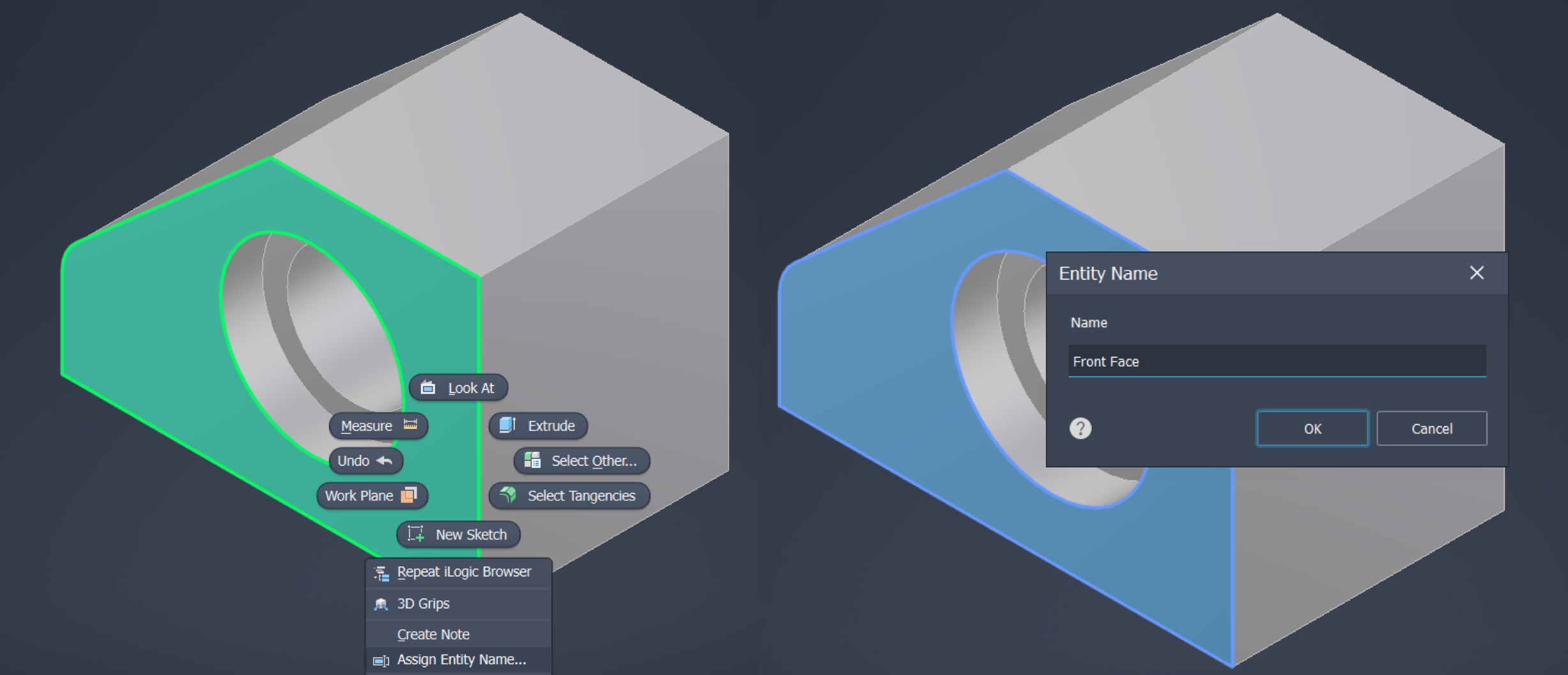
Image 3 – Assign Name to a part face
Once names are assigned, they appear in the Entities tab of the iLogic browser. These Named Entities can then be referenced directly when placing annotations automatically.
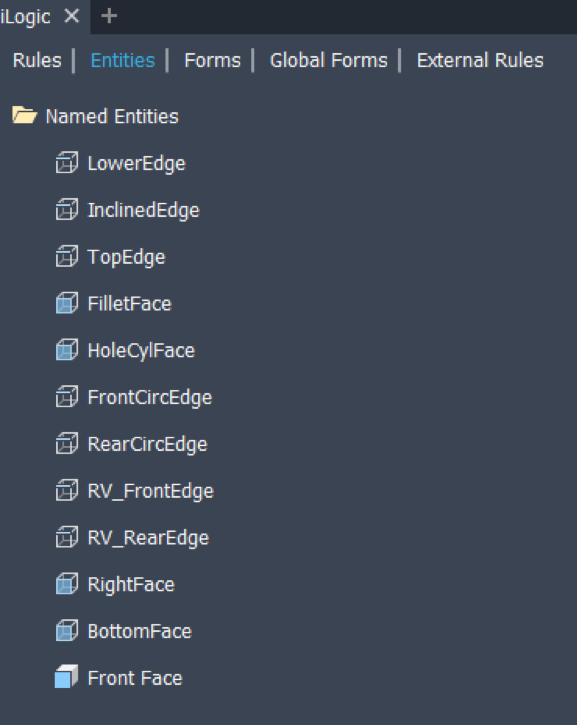
Image 4 – Named Entities
Naming geometry improves reliability when retrieving drawing curves derived from model faces and edges.
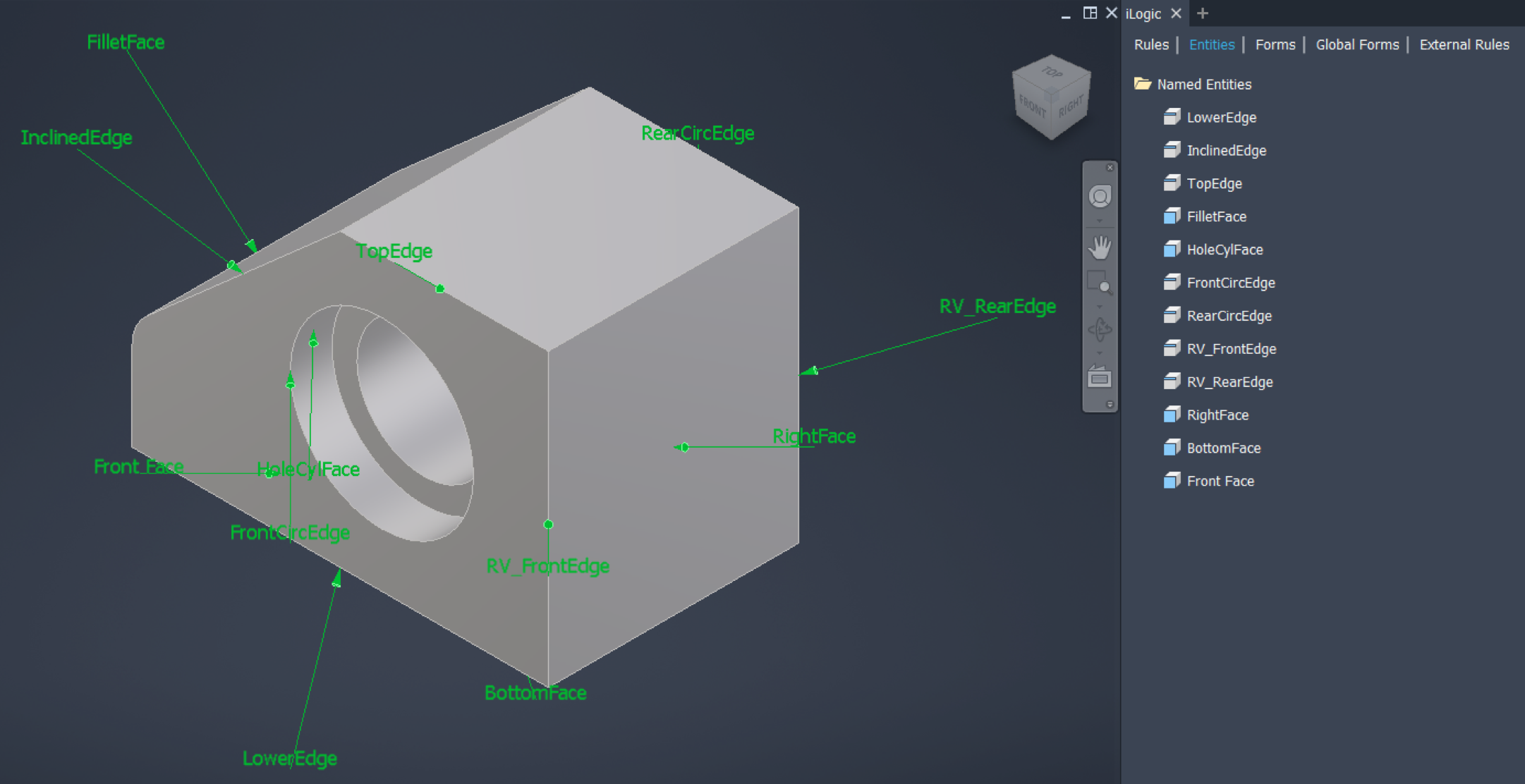
Image 5 – Named Entities in the iLogic Browser
Working with Attributes for Inventor API
This section describes the Attribute definition and its structure in the Inventor Object Model, followed by three methods to create attributes for use with the Inventor API.
Attributes provide another method for identifying geometry programmatically, especially when using the Inventor API.
An attribute allows you to associate information or add metadata to Inventor entities that support attributes. The attribute functionality was only available through the API before Inventor 2020. Now, attributes can be defined using the user and programming interface, although they have some limitations when being defined with the feature Assign Entity Name of the user interface. An attribute does not define anything in the 3D model. It serves different purposes, one of which is finding geometry (e.g., faces and edges) programmatically. Occurrences, features, sketches, parameters and more 3D model entities have names by default but faces and edges do not have names. Defining an attribute is the extra step required to name faces and edges.
When faces and edges have names, they can be found, referenced, and used programmatically. You can name faces and edges to place assembly constraints, place drawing annotations, and more.
In the Inventor API Object Model, these are the attribute objects and their hierarchy (see image below).
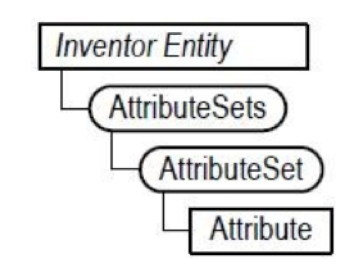
Image 6 – Object model for Attributes
The required structure to work with Attributes is very similar to the object model for iProperties. If you have worked with iProperties using the Inventor API object model, then you will easily understand how to use attributes.
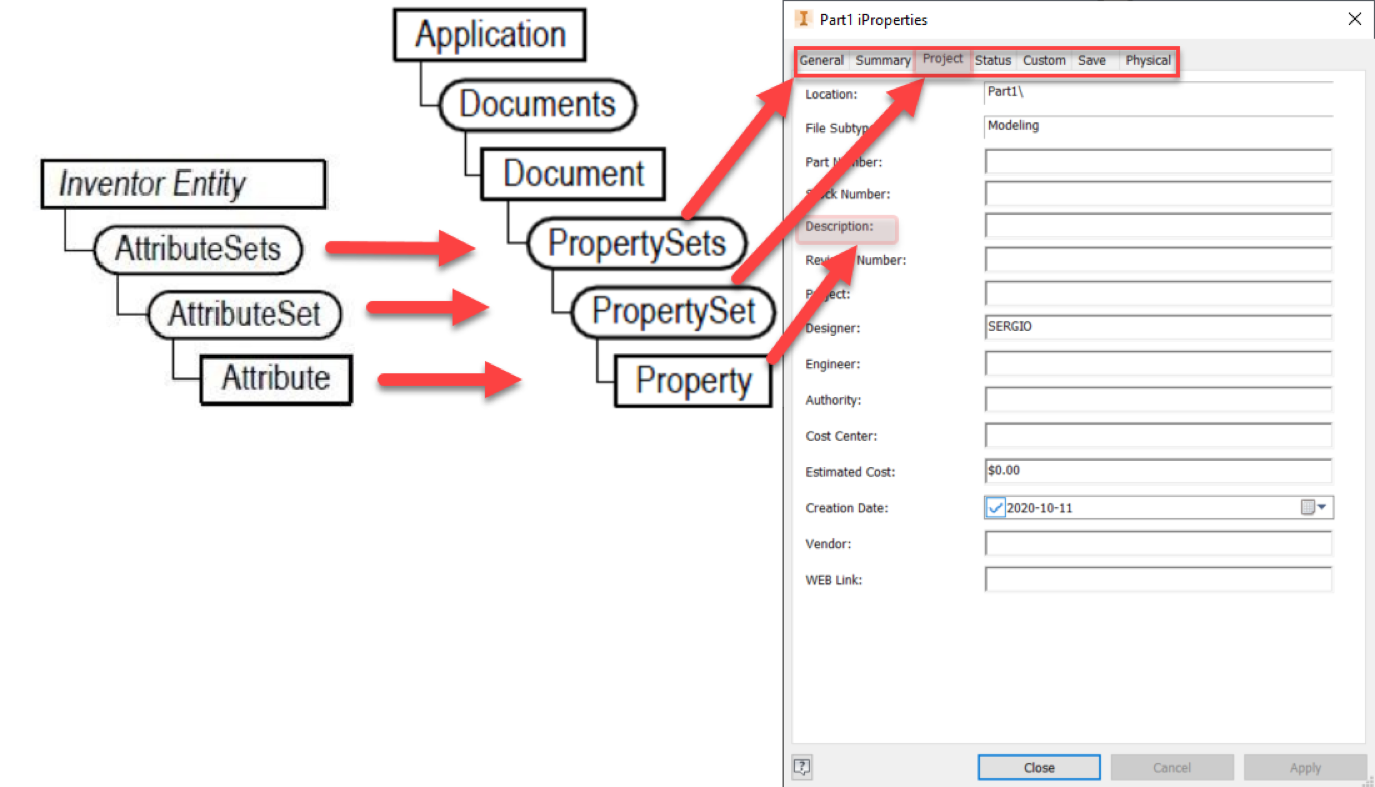
Image 7 – Comparison of object model for Attributes and iProperties
While Property Sets are under a Document, the attribute sets are under an Inventor entity that supports attributes. For instance, faces and edges are objects that support attributes. The Attribute Sets object contains all the attribute set objects. An attribute set contains attributes. An attribute has a name and a value.
Methods to Define Attributes
There are three common ways to define attributes for automation workflows:
1. Create attributes using code
Attributes can be created programmatically using the Inventor API to identify geometry such as faces or edges. The following code creates an AttributeSet named “General”, an Attribute named “Name” and assigns a value “Top Face”.
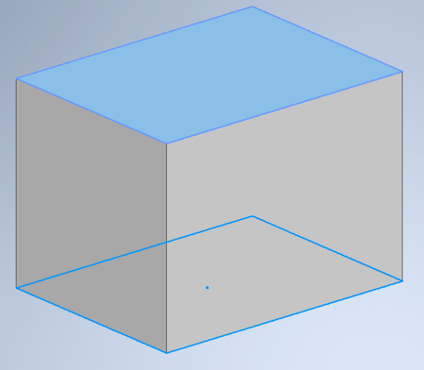
Image 8 – Face with attribute
Creating an attribute: create a box (draw a rectangle and extrude it upwards). The end face is the top face. Copy and paste this code inside an iLogic rule (see below). Run the rule.
Note: This is a VB.NET code that also works when creating an add-in. You should only replace “ThisApplication” with “g_inventorApplication”.
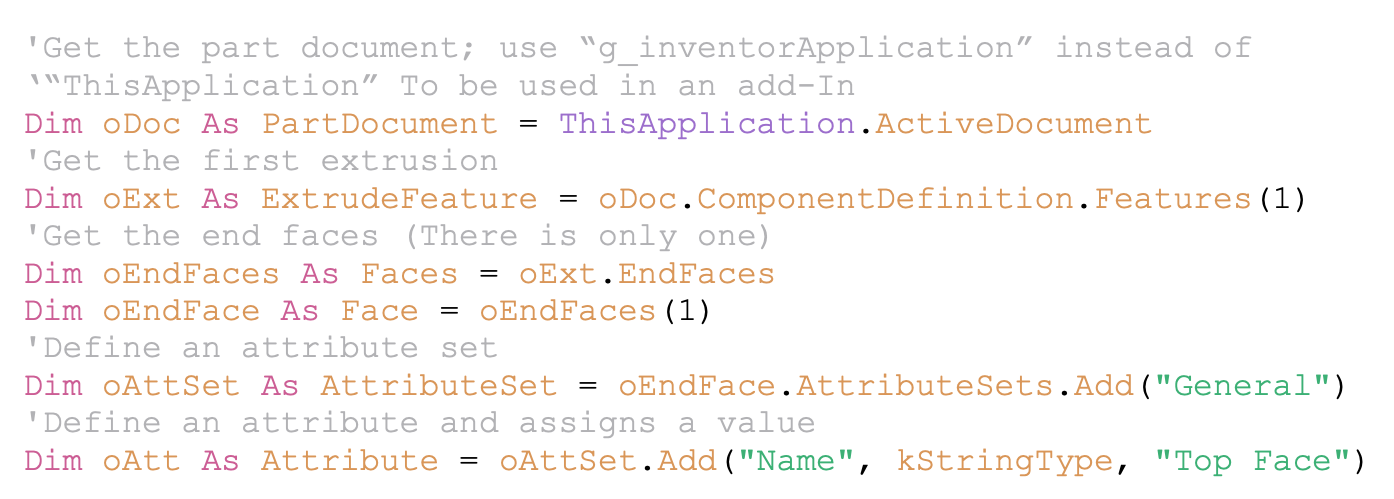
Image 8 – Face with attribute
2. Use the Assign Entity Name command
This method was explained previously. Right-click on faces and edges to assign entity names.
Inventor always uses the same AttributeSet name and Attribute name when this method is used. For all assigned names of faces and edges, the AttributeSet name is iLogicEntityNameSet and the Attribute name is iLogicEntityName. These are the two default names to be used when searching for attributes.
These default attributes can be referenced directly during automation.
3. Use attribute management add-ins
Add-ins such as Attribute Helper or Nifty Attributes provide additional ways to manage attributes inside Inventor.
Working with Work Features to Support Annotation Placement
Work Features are another way to attach annotations with information coming from the 3D model. Create Work Features (work planes, work axes and work points) in locations of your model that you can get from your drawing views. You can also use the Origin Work Features in your drawing if they are located at points that you can use to place annotations. Get strategic points from your model to attach annotations in the drawing by using Origin and User Work Features.
Sometimes the plan to automate the annotations is a process going back and forth between the 3D and 2D environments. This means that you may have the set of drawing views already placed in the 2D drawing, think of the annotations you want to place, then go back to your model and check if you can use existing Work Ffeatures or need to create new ones.
All three Work Features (Work Planes, Work Axes, and Work Points) can be used to place annotations; however, Work Points are more convenient since they are easier to work with.
While iLogic snippets can directly work with Work Features when defining the GeometryIntent, Inventor API requires the conversion of Work Features into centermarks or centerlines and then declare the GeometryIntent to be used for annotations.
In the drawing environment, Work Points will always be converted into centermarks. A Work Axis can be either a centermark when the axis is normal to the model orientation in the drawing view or a centerline when the axis is parallel to the model orientation in the drawing view. You can only use a Work Plane when it is displayed as a line in the 2D view and is converted into a centerline. Working with centerlines to attach dimensions is doable but it may require specifying either the start point, end point or any other point that works as the intent to attach the dimension. This is the reason why working with work points is easier and faster.
Renaming work features is one of the best practices when using them to automate annotations. The iLogic snippets added from Inventor 2021 use the work feature name in the model when declaring the geometry intent that is used to create the annotation.
Geometry Intent object
Dim namedGeometry1 = VIEW1.GetIntent(«NamedGeometry1»)
NamedGeometry: name of the model geometry (face, edge, vertex or workfeature)
Inventor API can use either the work feature name or a number that indicates the index of the work feature in the 3D model browser. Rename the work features or sort them in the model browser before you use them in the code to automate the annotations. Next, you can see the API property to return a Work Point from the collection object WorkPoints. You can enter either the number that specifies the work point to return from the work points in the 3D model browser or its name.
WorkPoints.Item( Index As Variant ) As WorkPoint
Index Variant Input Variant value that specifies the object to return. This can be a numeric value indicating the index of the item in the collection or it can be a string indicating the work point name.
Working with Sketched Parameters
Place the required parameters in strategic locations in the 2D sketches since they can be automatically retrieved via Inventor API.
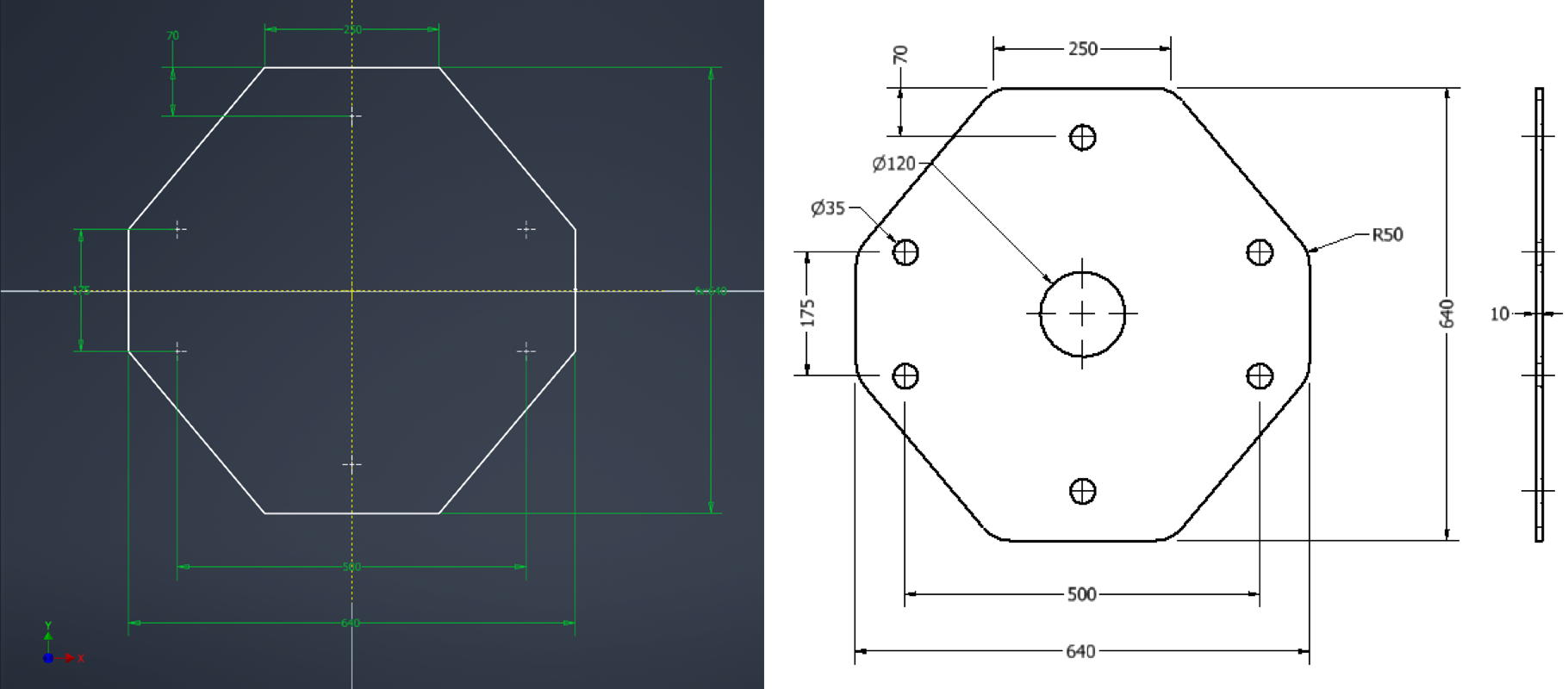
Image 9 – Dimensions automatically retrieved
Best Practices to prepare 3D Models for Drawing Automation
Preparing models for drawing automation typically includes:
- Defining model orientation using the ViewCube
- Use one of the following methods or combine them if needed:
- Naming faces and edges by using Named Entities or Attributes
- Creating strategic Work Features, preferred Work Points
Note: Rename work features created for annotation automation.
These practices allow drawing automation workflows to scale across multiple components and projects.
Conclusion
Preparing the 3D model is a critical step in building reliable drawing automation workflows in Autodesk Inventor.
When model orientation, geometry naming or attributes, and work features are defined intentionally, automation tools such as iLogic and the Inventor API can place drawing views and annotations more consistently.
Organizations that prepare models for automation early can significantly improve the reliability and efficiency of their documentation workflows.